
If you’re seeing Event ID 1121 and 1122 in Windows Defender
Event ID 1121 and 1122 Windows Defender errors usually indicate a configuration or policy conflict preventing Microsoft Defender or ASR rules from applying correctly. If you’re seeing Event ID 1121 or Event ID 1122 in Windows 10 or Windows 11, this guide explains the exact causes and how to fix them step-by-step.
In this guide, we’ll explain what Event ID 1121 and 1122 mean, why they happen, and how to fix them on Windows 10 and Windows 11.
Where to Find Event ID 1121 and 1122
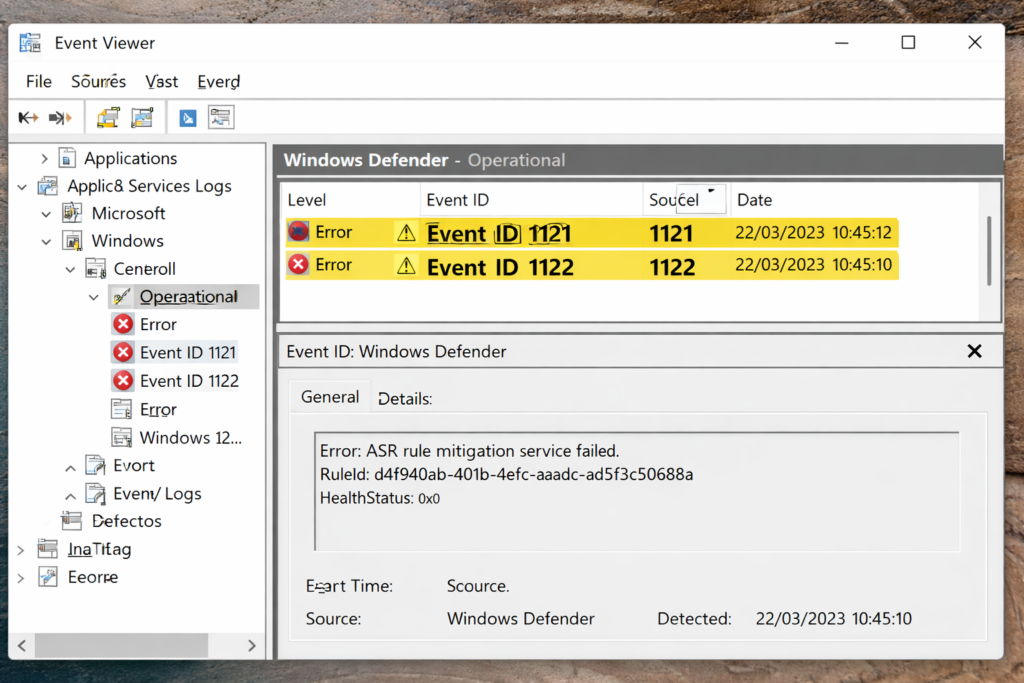
You can view these errors in Event Viewer:
- Press Win + R
- Type eventvwr.msc
- Go to:
Applications and Services Logs → Microsoft → Windows → Windows Defender → Operational
Look for:
- Event ID 1121
- Event ID 1122
These events typically appear when Defender security settings fail to apply.
What Is Event ID 1121 in Windows Defender?
Event ID 1121 in Windows Defender usually indicates that a Microsoft Defender Antivirus or ASR policy failed to apply correctly.
Common triggers include:
- Conflicting security policies
- Duplicate ASR rule assignments
- Incorrect rule GUID configuration
- GPO and Intune overlap
- Tamper Protection interference
In most enterprise environments, this is related to Attack Surface Reduction rules being pushed through Intune.
What Is Event ID 1122?
Event ID 1122 in Windows Defender often appears alongside Event ID 1121. It typically confirms that a Defender configuration setting could not be enforced.
In practical terms:
- Event 1121 = Policy conflict or failure detected
- Event 1122 = Defender confirms the failure to apply
If ASR rules are set to block mode, this can cause applications to fail or installations to break.
Common Causes of Event ID 1121 and 1122
Here are the most common reasons these errors appear:
- Conflicting Intune and Group Policy settings
- Multiple ASR policies targeting the same device
- Incorrect ASR rule configuration (block + audit conflicts)
- Device not fully synced with Intune
- Defender platform version mismatch
- Tamper Protection blocking changes
In hybrid environments, policy overlap is the number one cause.
How to Fix Event ID 1121 and 1122 (Step-by-Step)
Follow these steps in order.
Step 1 – Check Intune ASR Policies
- Go to Microsoft Intune Admin Center
- Navigate to:
Endpoint Security → Attack Surface Reduction - Review assigned policies
Check for:
- Duplicate policies assigned to the same device
- Conflicting rule settings (Block + Audit)
- Multiple profiles targeting the same security group
Remove duplicates or consolidate policies where possible.
Step 2 – Check for Group Policy Conflicts
If the device is Hybrid Azure AD Joined, you may also have local GPO settings applied.
Run:
gpresult /h report.html
Open the report and look for:
- Microsoft Defender Antivirus policies
- ASR rule configurations
- Conflicting security baselines
If GPO and Intune are both managing Defender, remove one source of control.
Step 3 – Force an Intune Sync
Sometimes the device simply hasn’t completed policy synchronization.
On the affected device:
- Go to Settings → Accounts → Access work or school
- Select the connected account
- Click Info
- Choose Sync
Wait a few minutes and check Event Viewer again.
Step 4 – Verify Defender Platform Version
Outdated Defender platform versions can also cause Event ID 1121 and 1122.
Run:
Get-MpComputerStatus
Check:
- AMProductVersion
- AMEngineVersion
If outdated, trigger updates or run:
Update-MpSignature
Step 5 – Review Tamper Protection
If Tamper Protection is enabled, it may block policy changes.
Check in:
Windows Security → Virus & Threat Protection → Manage Settings
Temporarily disable Tamper Protection (if permitted by policy), resync, then re-enable.
Can You Ignore Event ID 1121 and 1122?
It depends.
If ASR rules are in Audit mode, these errors may not affect users.
If rules are in Block mode, you may see:
- Applications failing to install
- Win32 apps stuck in Intune
- Unexpected access denials
In production environments, it’s best to resolve the conflict rather than ignore it.
Preventing Future Defender Policy Conflicts
To avoid Event ID 1121 and 1122 in Windows Defender:
- Use one management source (Intune or GPO, not both)
- Consolidate ASR policies
- Avoid duplicate assignments
- Regularly review security baselines
- Monitor Defender operational logs
Clear policy design prevents most Defender-related errors.
Related Troubleshooting Guides
If you’re working in an Intune-managed environment, you may also find these helpful:
- Intune Win32 App Stuck on Installing
- ASR Rules Blocking Legitimate Applications
- Intune Company Portal Not Working
Visit official Microsoft document library to get more information on this issue here