
This guide explains the most important Windows 11 security and privacy settings that every home user should review. Windows 11 comes with strong security and privacy features built in, but many home users never look at them after the initial setup. The good news is that you don’t need to be technical — or install extra software — to improve how secure and private your system is.
This guide walks through the most important Windows 11 security and privacy settings, explains what they do in plain English, and highlights what’s worth checking or adjusting. Everything here is aimed at normal home users, not businesses or IT professionals.
Windows 11 Security Features Worth Enabling
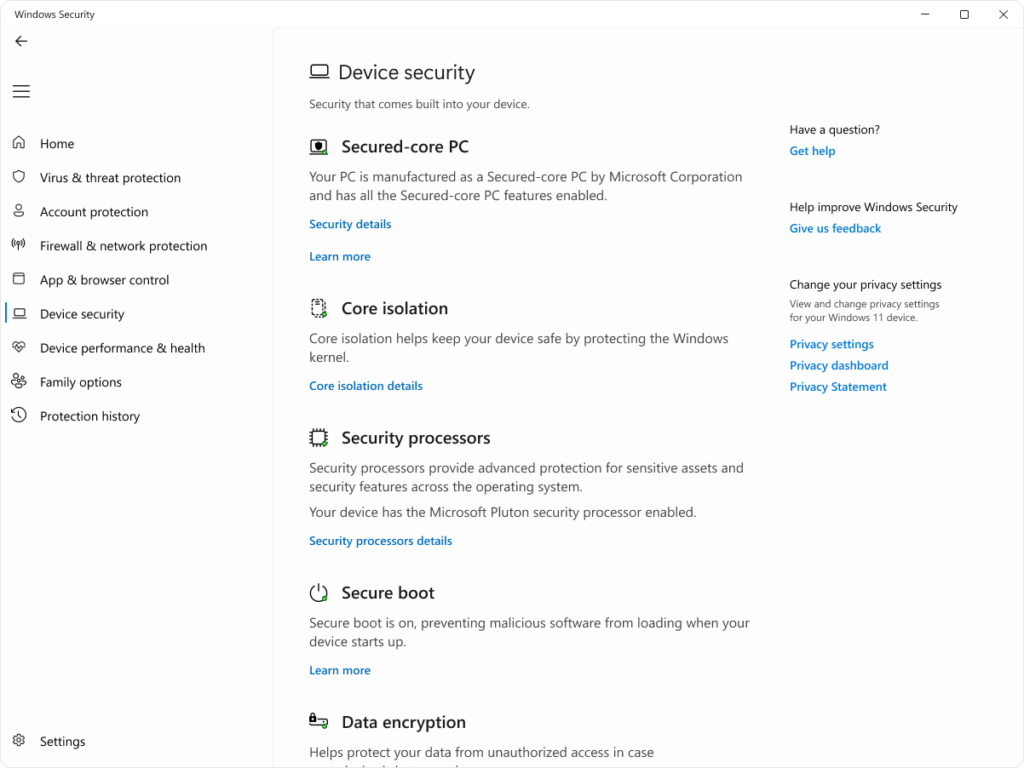
Windows Security: What Actually Matters
Windows 11 includes Windows Security, which brings together antivirus, firewall, and account protection in one place.
For most home users, this provides solid, built-in protection without needing third-party tools. The key areas worth checking are:
- Virus & threat protection – Make sure real-time protection is turned on.
- Firewall & network protection – Leave this enabled for all network types.
- Account protection – Helps protect sign-in and credentials.
If these sections show green check marks, you’re already in good shape.
Core Isolation & Memory Integrity
Core isolation helps protect Windows from low-level attacks by separating critical system processes from the rest of the operating system.
- On newer hardware, Memory integrity is often enabled by default.
- If it’s available and turned off, enabling it can add another layer of protection.
- Some older drivers may not support it — if Windows disables it automatically, that’s normal.
For most modern PCs, leaving this on is recommended.
Automatic Updates (Why You Should Leave Them On)
Windows updates aren’t just about new features — many of them fix security vulnerabilities.
For home users:
- Keep automatic updates enabled
- Use active hours to prevent unwanted restarts
- Avoid delaying updates unless there’s a specific reason
Skipping updates for long periods increases risk more than most people realise.
SmartScreen & App Reputation
Microsoft Defender SmartScreen helps protect you from:
- Malicious downloads
- Suspicious websites
- Unknown or potentially unsafe apps
If you see a SmartScreen warning, it doesn’t always mean something is dangerous — but it does mean Windows can’t verify it. For most users, paying attention to these warnings is a good habit.
Windows 11 Privacy Settings Explained Simply
Diagnostic Data: What’s Actually Collected
Windows collects a small amount of required diagnostic data to keep the system working. You can also choose whether to send optional diagnostic data.
For home users:
- Required data cannot be disabled
- Optional data can be turned off without breaking anything
If you prefer less data sharing, disabling optional diagnostics is a reasonable choice.
Location, Camera, and Microphone Permissions
Windows lets you control which apps can access sensitive features like:
- Location
- Camera
- Microphone
It’s worth reviewing these once:
- Remove access from apps you don’t use
- Leave access enabled for apps that clearly need it (video calls, maps, browsers)
You don’t need to micromanage this — a quick review is usually enough.
Advertising ID & Personalised Ads
Windows uses an Advertising ID to personalise ads within apps.
Important points:
- Turning it off does not remove ads
- It simply makes them less personalised
- Apps will continue to work normally
Many users choose to disable this for privacy reasons.
Activity History & Cloud Sync
Windows can track activity across devices if you’re signed in with a Microsoft account.
For home users:
- This can be useful if you use multiple devices
- It’s safe to disable if you prefer less syncing
There’s no right or wrong choice here — it depends on how you use your PC.
Settings Most Home Users Don’t Need to Worry About
You may see advice online about:
- Registry tweaks
- Group Policy changes
- “Debloat” scripts
- Enterprise-level security settings
For most home users, these are unnecessary and sometimes risky. If a setting requires scripts, downloads, or advanced system changes, it’s usually safe to ignore it.
Windows 11 is designed to be secure out of the box.
Final Thoughts
Windows 11 already provides strong security and sensible privacy controls for home users. Spending a few minutes reviewing the settings covered here can improve awareness and confidence — without installing extra software or making risky changes.
For most people, the goal isn’t perfect privacy or maximum lockdown. It’s simply understanding what Windows is doing and making a few informed choices that fit how you actually use your PC.
If you’re interested in how security works in managed environments, see our guide on securing remote Intune devices. Or visit Official Microsoft Security information here