
How to Fix Intune Win32 App Stuck on Installing
Why Intune Win32 App Gets Stuck Installing
If your Intune Win32 app is stuck on “installing”, you’re not alone. This is a common issue in Microsoft Intune environments and is usually caused by detection rule problems, failed installs, or device sync issues. In this guide, we’ll break down the real causes and show you how to fix it step by step.
There is:
- No failure message
- No success status
- No clear indication of what’s wrong
From the admin side, the app package looks correct, assignments are in place, and the device appears healthy — yet the install never finishes.
This guide walks through the real reasons Win32 apps get stuck and how to troubleshoot them in the correct order.
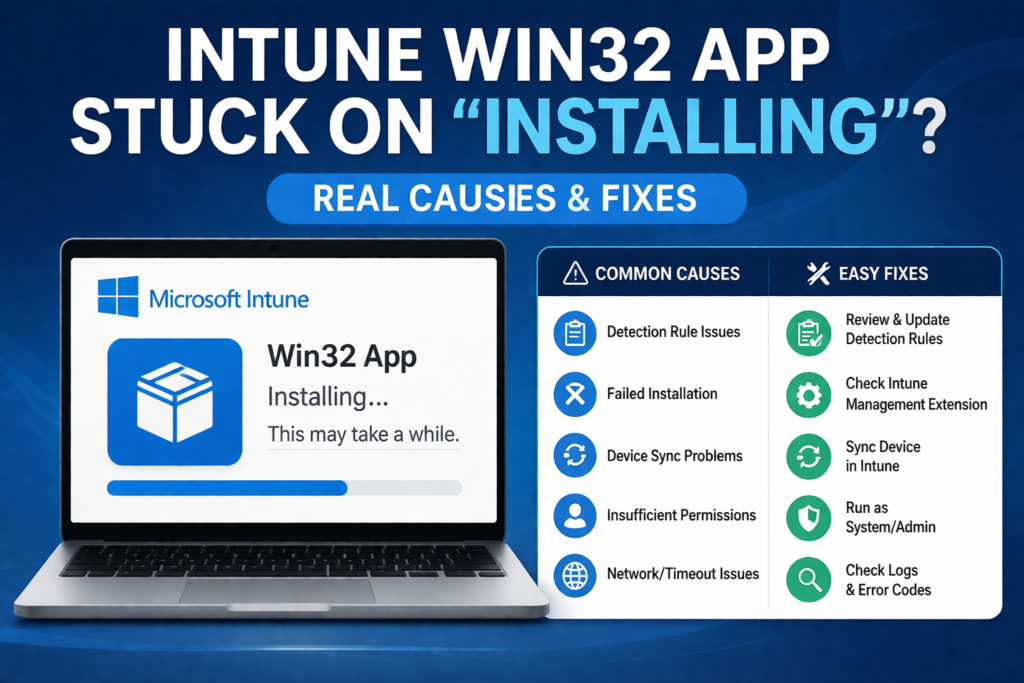
Important Concept: “Installing” Means Intune Is Waiting
When a Win32 app is stuck on “Installing”, Intune is usually waiting for one of two things:
- The installer to finish and return a valid exit code
- The detection rule to report success
If either of these never happens, Intune waits indefinitely.
Step-by-Step Troubleshooting (In the Right Order)
Step 1: Check the Intune Management Extension Is Running
Win32 apps are handled by the Microsoft Intune Management Extension.
On the device:
- Open Services
- Confirm Microsoft Intune Management Extension is:
- Installed
- Running
If the service is missing or stopped:
- Win32 apps will never complete
- Compliance status is irrelevant
Restart the service if necessary.
Step 2: Review Intune Management Extension Logs
Logs are located at:
C:\ProgramData\Microsoft\IntuneManagementExtension\Logs
Primary log:
IntuneManagementExtension.log
Look for:
- Install command execution
- Exit codes
- Detection rule evaluation
- Repeated install retries
If the same install command runs repeatedly, detection is failing.
Step 3: Validate Detection Rules (Most Common Cause)
Detection rules are the number one reason apps get stuck.
Common mistakes:
- File path points to the wrong location
- Registry detection checks the wrong hive (HKCU vs HKLM)
- MSI product code mismatch
- Architecture mismatch (x86 vs x64)
If detection never returns success, Intune never completes the install.
Always test detection manually on the device.
Step 4: Verify Installer Exit Codes
Intune expects:
0= Success3010= Success (restart required)
If the installer returns:
- Custom exit codes
- Non-zero codes without mapping
Intune may treat the install as incomplete.
Check the app configuration and ensure exit codes are defined correctly.
Step 5: Confirm Install Context (System vs User)
Many Win32 apps fail silently due to incorrect context.
Check:
- Install behavior = System for machine-wide apps
- User context only for profile-level changes
If the installer requires admin rights but runs as user, it will stall or fail.
Step 6: Check for Installer Blocking (Defender / ASR)
Security controls often block installers without obvious errors.
Check:
- Defender Event Viewer logs
- ASR events (IDs 1121 / 1122)
If blocked:
- Identify the rule
- Test with a targeted exclusion
- Re-run the install
Silent blocks commonly cause indefinite “Installing” states.
Step 7: Test the Installer Manually
Always validate the installer outside Intune.
Run:
installer.exe /silent
or
msiexec /i app.msi /qn
If it fails manually:
- Intune will not fix it
- Packaging must be corrected first
Step 8: Force Re-Evaluation
After changes:
- Sync the device from Company Portal
- Restart the Intune Management Extension service
- Reboot the device if necessary
Intune does not always re-evaluate immediately.
Common Real-World Causes Summary
Apps get stuck on “Installing” due to:
- Broken detection rules
- Wrong install context
- Missing or stalled extension
- ASR or Defender blocks
- Incorrect exit code handling
Not because of “sync issues”.
Quick Troubleshooting Checklist
If a Win32 app is stuck:
- ✔ Extension installed and running
- ✔ Logs updating
- ✔ Detection rule valid
- ✔ Exit codes defined
- ✔ Correct install context
- ✔ Security not blocking
- ✔ Installer works manually
If all seven are true, the app will complete.
Final Notes
“Installing” is not an error — it’s a waiting state.
Once you understand what Intune is waiting for, Win32 app troubleshooting becomes predictable instead of frustrating. Microsoft recommends checking detection rules carefully. Visit here for more info.
Prevent Intune App Failures with Proper Backup
Prevent Intune Deployment Issues in the Future
If you’re regularly dealing with failed deployments or stuck installs, having a reliable backup and recovery solution can save hours of troubleshooting.
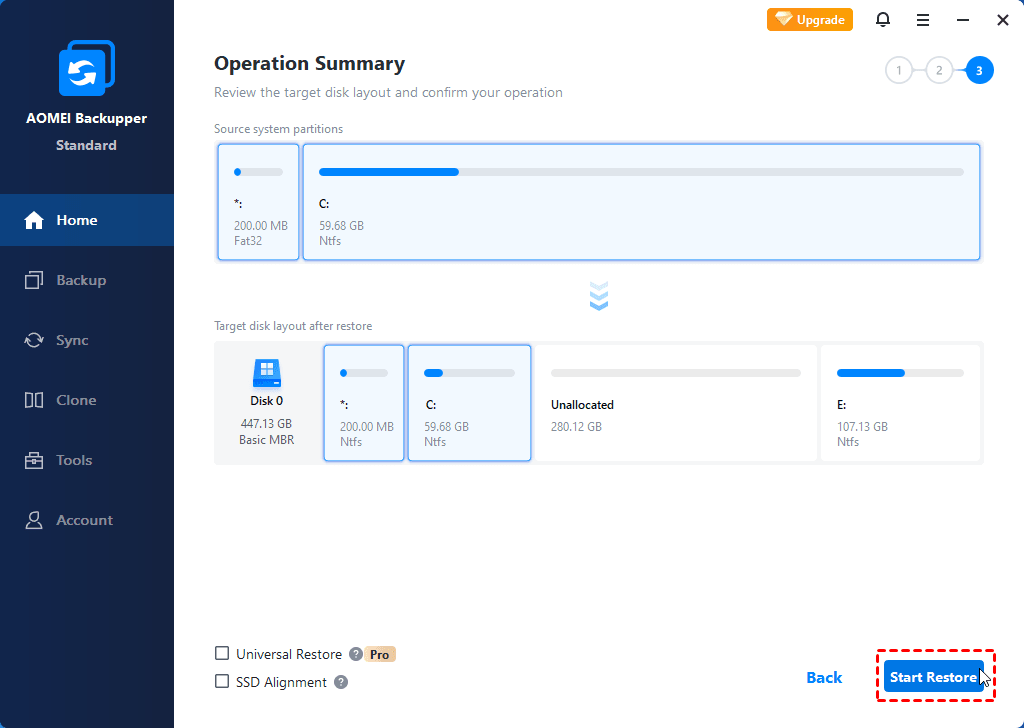
Tools like AOMEI Backupper allow you to quickly restore systems and avoid long downtime when Intune deployments fail.
⚡ Save Hours of Troubleshooting
Pingback: Event ID 1121 and 1122 Windows Defender Fix - EndpointFix.com