
Why Company Portal App Is Not Showing
If your Company Portal app is not showing on Windows 10 or Windows 11, you’re not alone. This is a common issue in Microsoft Intune environments and can prevent users from accessing required apps and resources.
In this guide, we’ll break down the real causes of the Company Portal app not showing and walk through proven fixes that actually work in real-world environments.
Common symptoms:
- App is assigned, but invisible in Company Portal
- Syncing the device doesn’t help
- Other apps appear correctly
- No errors are shown in Intune
This is one of the most confusing Intune behaviours because the app technically exists — it’s just not visible.
This guide walks through every real-world reason an app doesn’t appear and how to troubleshoot it systematically.
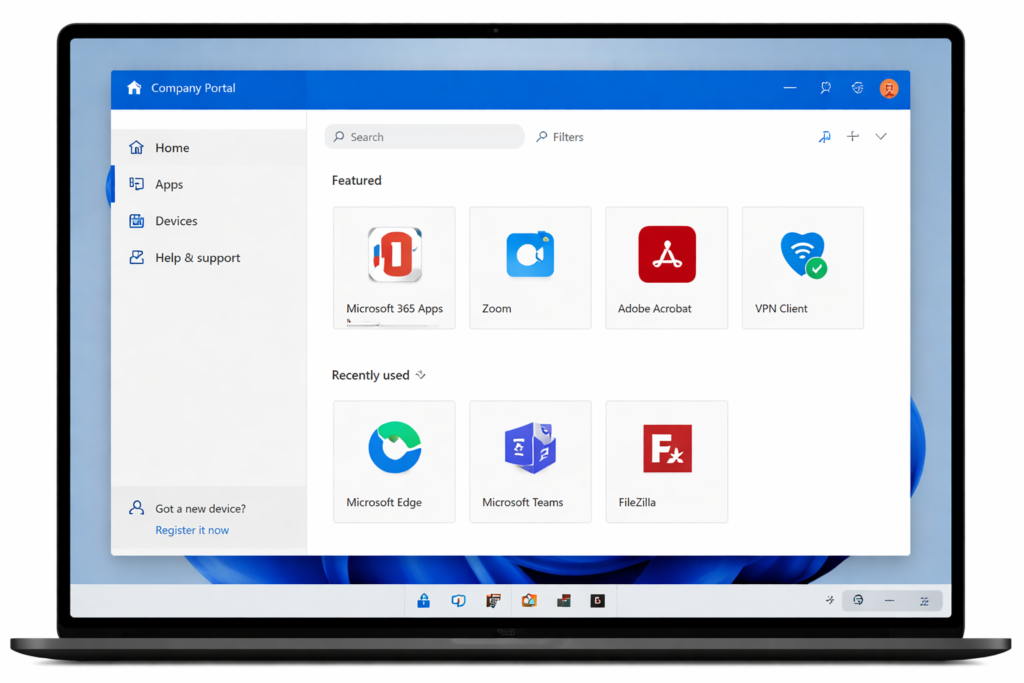
Important Concept: Visibility Is Controlled by Assignment Logic
Company Portal only shows apps that:
- Are assigned to the user or device
- Are marked as Available for enrolled devices
- Are not excluded by filters
- Are compatible with the device
If any one of these conditions fails, the app will not appear.
Step-by-Step Troubleshooting (In the Right Order)
Step 1: Check Assignment Type (Most Common Cause)
For an app to appear in Company Portal, it must be assigned as:
- ✅ Available for enrolled devices
Apps assigned as:
- Required
- Uninstall
May install silently or fail without ever appearing.
Confirm the assignment intent first.
Step 2: Confirm Assignment Target (User vs Device)
Check whether the app is assigned to:
- A user group
- A device group
Common mistakes:
- App assigned to a device group, but user expects to see it
- App assigned to a user group, but device-only app is used
Company Portal visibility is user-centric, even when the app installs system-wide.
Step 3: Review Assignment Filters Carefully
Filters frequently exclude devices silently.
Check for filters on:
- OS version
- Ownership (Corporate vs Personal)
- Device category
- Enrollment profile
A device can be compliant and online, yet excluded by a filter.
Step 4: Verify App Compatibility Settings
Check the app’s:
- Minimum OS version
- Architecture (x86 vs x64)
- Supported platforms
If the device does not meet compatibility requirements, the app will not show.
Step 5: Confirm Company Portal Is Healthy
On the device:
- Ensure Company Portal is installed and updated
- Open Company Portal → Settings → Sync
If Company Portal itself is broken or outdated:
- App visibility may fail
- Sync actions may not trigger
Reinstall Company Portal if necessary.
Step 6: Check Intune Management Extension Status (Win32 Apps)
For Win32 applications:
- Confirm the Intune Management Extension is installed
- Confirm logs are updating
If the extension is missing or stalled:
- App processing may not occur
- Visibility may be inconsistent
Logs:
C:\ProgramData\Microsoft\IntuneManagementExtension\Logs
Step 7: Confirm App Is Not Superseded or Replaced
If the app:
- Has been superseded
- Has a newer version replacing it
The older version may not appear.
Check:
- Supersedence configuration
- Version availability
Step 8: Force Refresh and Re-Evaluation
After making changes:
- Sync from Company Portal
- Sign out and back into Company Portal
- Restart the device if necessary
Intune does not always refresh visibility immediately.
Common Real-World Scenarios
Apps don’t appear in Company Portal due to:
- Assignment marked Required instead of Available
- User vs device targeting mismatch
- Filter exclusions
- Compatibility restrictions
- Broken Company Portal installation
Not because of “sync issues”.
Quick Visibility Checklist
If an app isn’t showing:
- ✔ Assigned as Available
- ✔ Targeted to correct user/group
- ✔ No filter exclusions
- ✔ Compatible with device
- ✔ Company Portal healthy
- ✔ Extension running (Win32)
If all six are true, the app will appear.
💡 Avoid Future Company Portal Issues
If you’re managing multiple devices, troubleshooting issues like the Company Portal app not showing can quickly become time-consuming.
In real environments, many IT admins rely on backup and recovery tools to restore systems quickly instead of spending hours fixing broken deployments.
👉 Download AOMEI Backupper here
Final Notes
Company Portal does exactly what Intune tells it to do — even when that logic isn’t obvious.
Once you understand how visibility is decided, missing apps become easy to diagnose.
You might also find this helpful: